Flag and ban guests
Guest flags help manage banned guests, share special instructions and deliver personalised experiences. Staff can see these flags when searching for guests, making bookings for existing guests, or checking them in at POS. If a banned guest books online using an email address or phone number matching their ROLLER record, a notification will appear in the activity centre.
When to use
There are five different flags that can be assigned to guest records in Venue Manager.
Here are some examples for when to use each flag:
Ban 
Use the Ban flag to receive a notification when a banned guest books online. You can also require a manager code to prevent staff from redeeming tickets for banned guests at POS. The Ban flag uses a different colour than the other flags to make sure it stands out. When a banned guest books online with an email address that matches their record in ROLLER, a notification is sent to the activity centre for the team to promptly action.
VIP 
Use the VIP flag to outline any special instructions for VIP guest visits and personalize the experience they get at your venue.
Medical 
Use the Medical flag to inform your team about how to manage any guest medical requirements such as allergies.
Alert 
Use the Alert flag to highlight when specific guests visit. For example, you can use this flag to monitor (rather than ban) a guest with a history of rudeness, or simply to delight a returning guest who forgot their jumper.
Competency 
Use the Competency flag to record the competency levels of guests and provide safe and enjoyable experiences (e.g. rock climbing competency).
When creating a flag, you can add specific instructions for staff and set how long the flag remains active (e.g. a 3-month ban).
What you’ll see
Any staff member can view the assigned flags and comments in a variety of areas in Venue Manager and POS.
Guest flags and comments can’t be seen by guests.
Venue Manager
All staff members can see guest flags and comments in various parts of Venue Manager and POS, including guest searches, bookings, member or waiver holder records and guest experience score response. Guests cannot see these flags or comments.
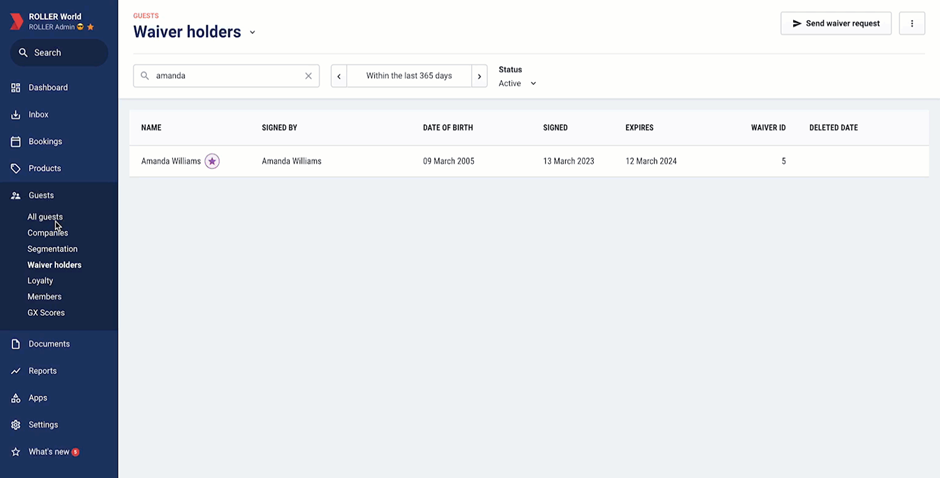
POS
From POS, staff can see guest flags when searching for guests, bookings, memberships and waivers, as well as when adding guests to bookings, redeeming tickets at POS and assigning waivers.
Assign a flag or ban to a guest record
All staff members can assign guest flags, except for Ban flags.
To assign the Ban flag, Venue Manager and POS staff must have the Venue Manager permission Can ban guests enabled. Administrators and managers have this role enabled by default.
Venue Manager
- From Venue Manager, go to Guests > All guests.
- Search for and select the guest.
- The guest details appear.
- From the Flag drop-down at the top of the page, select the flag you want to add: Ban, VIP, Medical, Alert or Competency.
- (Optional) Add any comments you want to share with all staff.
- (Optional) Add an expiry date for the flag. The flag will automatically expire on the date you choose.
- Select Add.
- Select Save.
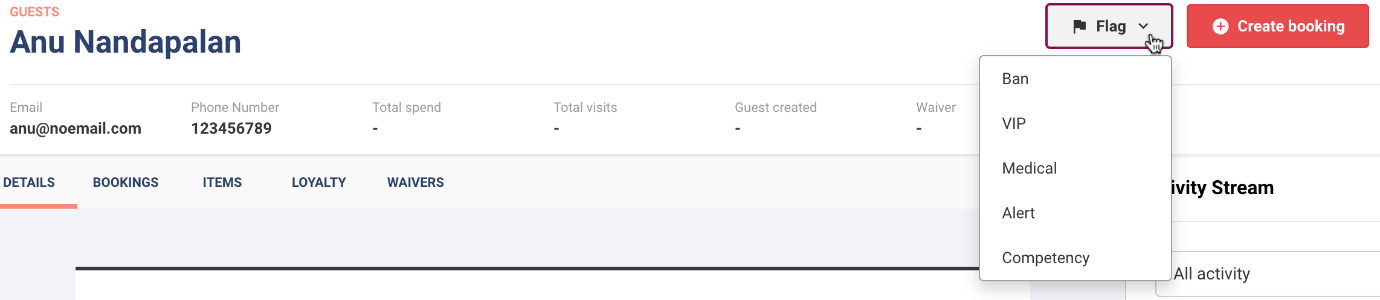
You can assign multiple types of flags to a guest but only one flag per type. For example, you can only ban a guest once—previous bans must be removed before adding a new one.
Activity centre alerts when banned guest books online
When a banned guests makes a booking online using an email address or phone number that matches a flagged banned guest in ROLLER, an alert will automatically be sent to the activity centre for you or your staff to act quickly to manage the situation if needed.
View a list of flagged guests in Venue Manager
- From Venue Manager, go to Guests > All guests.
- From the Flag type filter at the top of the page, select the type of flag you want to see.
- A list of all guests with the flag appear.
Select a record to see when the flag was assigned in the booking's activity stream and any comments that have been added.
You can also export the filtered records as a CSV file.
Edit or remove a guest flag
Log in to Venue Manager
- Go to Guests > All guests
- Search for and select the guest you want.
- From the flag banner at the top of the page, select Manage.
Edit or remove the guest ban.
Was this article helpful?
That’s Great!
Thank you for your feedback
Sorry! We couldn't be helpful
Thank you for your feedback
Feedback sent
We appreciate your effort and will try to fix the article