How to Update a Booking in Venue Manager
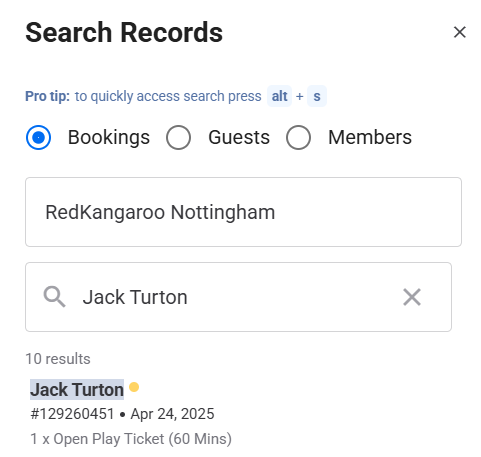
Step 1: Find the Booking
Go to the search bar in the top left corner of Venue Manager.
Type in the name or booking reference number.
Click on the correct booking from the list.
Step 2: Change the Booking Date
Click on the Order tab.
Select the Date option.
Choose the new date you'd like for the booking.
Step 3: Update the Booking Time
Go to the Availabilities tab on the right-hand side.
In the Product section, select the same product as the original booking.
This will show available times you can switch to.
Step 4: Remove the Old Time
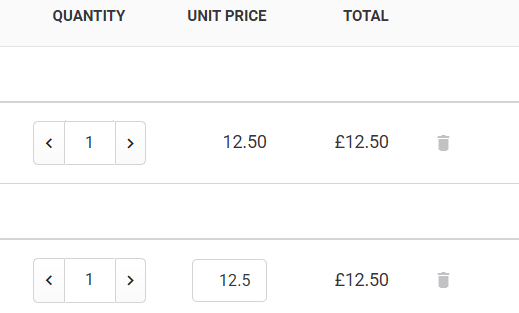
Return to the Order tab.
Find the item with the incorrect time and click the trash icon to delete it.
Tip: You can also change the booking date this way if needed!
Was this article helpful?
That’s Great!
Thank you for your feedback
Sorry! We couldn't be helpful
Thank you for your feedback
Feedback sent
We appreciate your effort and will try to fix the article