If you don't have an existing Microsoft 365 group or team, you're starting from scratch. That means, you get to choose how your team is organized and set up.
When your team is created, you'll get a corresponding SharePoint site and OneNote.
Create a team from scratch:
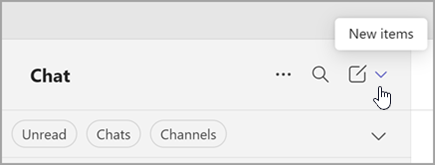
On the left side of the app, Select Chat
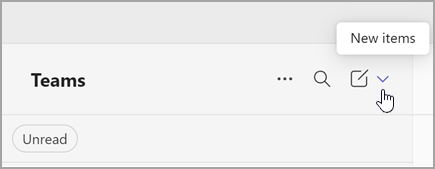
 . If using the separate view, select Teams
  .
.Select New items from above your list of chats and channels.
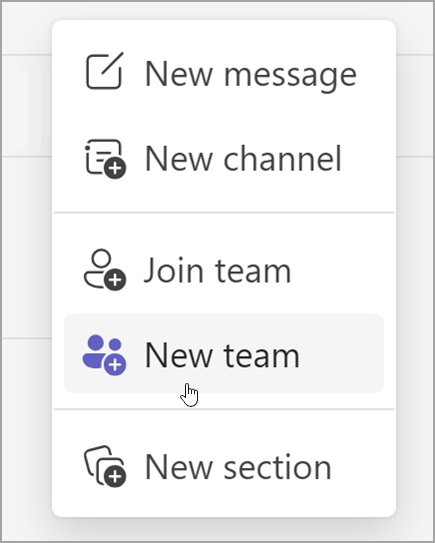
Select New team.
Name your team and add an optional description.
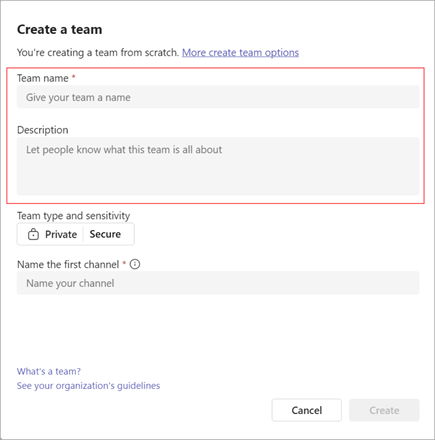
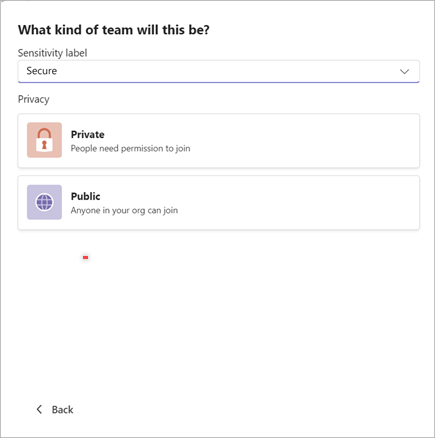
Decide what kind of team you want this to be. To limit content and talk to a certain group of people, choose Private. For a community or topic that anyone in the org can join, choose Public. If your organization uses data classification, select your team's sensitivity label as well.
Note: Teams are automatically private (if the organization allows it). Default sensitivity, if set by the organization, will appear automatically.
Name your first channel.
When you're done, select Create.
Your team's first channel
Every team has at least one channel. We create the first one for you; however, you must provide a name to get started. Its description is the same as your team's description.
What to do next
As the creator of the team, you're the owner. Invite people to your team and create more channels. For a deeper look at roles and permissions, see Team owner, member, and guest capabilities in Teams.
Feel free to create more teams—you can own up to 250 teams per account.
Was this article helpful?
That’s Great!
Thank you for your feedback
Sorry! We couldn't be helpful
Thank you for your feedback
Feedback sent
We appreciate your effort and will try to fix the article