Set up an out of office status and message to let your teammates know you're not working or on vacation. When teammates send you a chat message, they'll see your out of office reply and know you're unavailable. Your out of office status will also sync with automatic replies in your Outlook calendar.
There are two ways to schedule your out of office status and message in Teams.
Schedule an out of office from your profile picture
Select your profile picture at the top of Teams and choose Set status message
 .
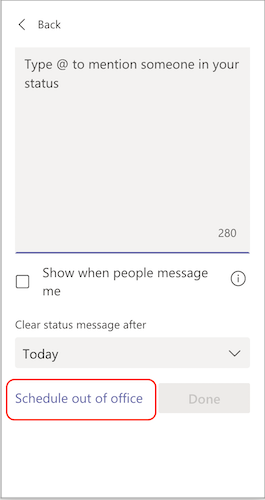
.Select Schedule out of office at the bottom of the options.
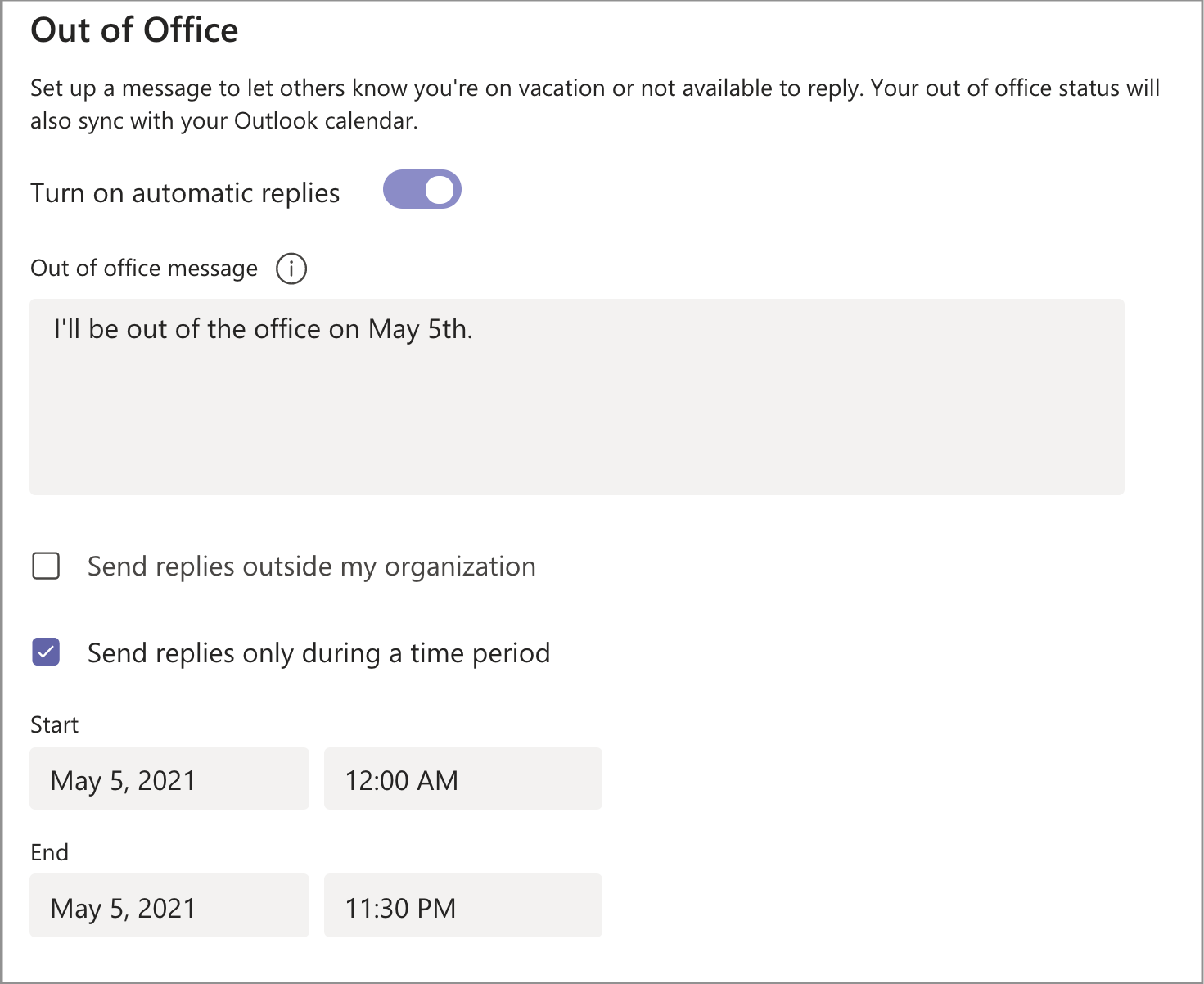
Turn on the toggle next to Turn on automatic replies.
Type an out of office message in the text box. This message will appear when people contact you in Teams or open your profile. It'll also be sent as an automatic reply in Outlook.
Note: An out of office message is required in order to set your status and sync with your Outlook calendar.
If you'd like to send an automatic message to people outside of your organization, select the check box next to Send replies outside my organization and choose between your contacts or all external senders. You can tailor your out of office message to this audience, or use the same message you typed above by copy/pasting it into the text box.
Based on when you'll be out of the office, choose the dates and times that your out of office message and status will start and stop displaying by selecting the check box next to Send replies only during a time period.
Select the Save button.
Was this article helpful?
That’s Great!
Thank you for your feedback
Sorry! We couldn't be helpful
Thank you for your feedback
Feedback sent
We appreciate your effort and will try to fix the article