Invite people in your org to view and access your calendar details in the new Teams calendar. Decide how much access you want to give people you share with and change it anytime.
To invite others to share your Teams calendar:
Select Calendar
 in Teams.
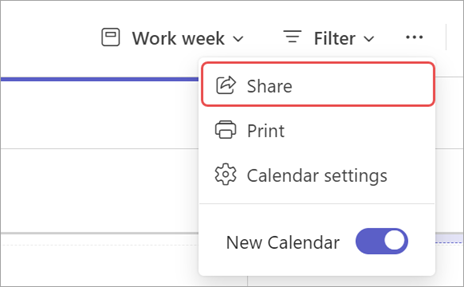
Select More options
 > Share
  .
.
Enter the email address or name of the contact you want to share with.
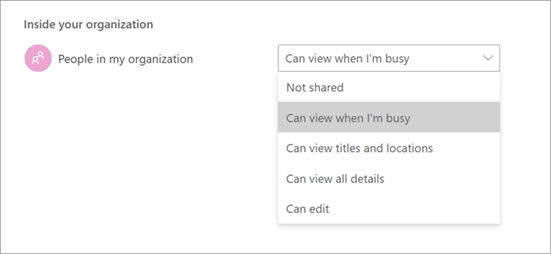
From the dropdown menu, select the level of access you want them to have:
Can view when I’m busy: Can only view the time you have blocked out as busy.
Can view titles and locations: Can view only title and location of an event.
Can view all details: Can view all details, including event descriptions and attendees.
Can edit: Can view, edit, and delete events.
Can delegate: Can view, create, modify, and delete items. A delegate can also create meeting requests and respond to invitations on your behalf.
Select Share.
You can also adjust general access permissions for people in your org by selecting your preference in the Inside your organization > People in my organization dropdown menu.
- Open Microsoft Teams and navigate to the desired channel.
- Click “+” (Add a tab) at the top.
- Search for “Channel Calendar” and select it.
- Name the calendar and click Add.
Was this article helpful?
That’s Great!
Thank you for your feedback
Sorry! We couldn't be helpful
Thank you for your feedback
Feedback sent
We appreciate your effort and will try to fix the article