With color categories and reminders, Outlook keeps your calendar organized so you don't miss important meetings or appointments.
Add or update reminders
Select New Appointment, New Meeting, or open an appointment by double-clicking on the event.
Note: If it's a recurring event, you can change the reminder for a single event or the entire series.
Select the Reminder drop-down menu and choose how long before the appointment you want to be reminded. The default is 15 minutes. Or choose None if you don't want a reminder.
If it's a new appointment, add a Subject, Location, and brief description.
Select Save & Close to finish.
Add a color category
Categories are only seen by you to group similar messages, tasks, contacts, or calendar events.
Select New Appointment, New Meeting, or open an existing appointment by double-clicking on the event.
Note: If it's a recurring event, you'll need to choose the series to add a color category.
Select Categorize and then one of the preset colors.
If this is the first time using the color, you'll be asked if you want to rename it.
After you’ve chosen a category, a color bar will go across the top of the event.
Rename or create new color categories
Select any appointment or meeting.
Select Categorize > All Categories.
In the Color Categories window, you can choose:
New: Create a new category.
Rename: Rename an existing category.
Delete: Delete a category.
Color: Change the color of an existing category.
Shortcut Key: Choose a shortcut key for the category.
Flag or pin a message
You can also use the same categories in People, Mail, and Tasks in Outlook.
To remind yourself to follow up on a message, you can add a follow-up flag. A flag gives you a visual cue that you want to return to that message later. In the message list, flagged items display the  symbol.
Pinning a message moves it to the top of your inbox so it's easy to find later. A pinned message is indicated by a  symbol.
Flag a message
In the message list, hover over the message to see the flag option.
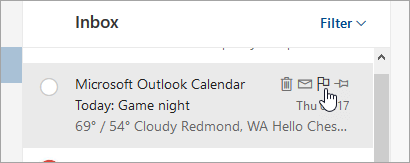
Select
 to flag the message.
Select
 to unflag the message.
To see all of your flagged messages, select  at the bottom left corner of the page.
Pin a message
Note: To pin a message or see pinned messages, your inbox must be sorted by date. Select Filter at the top of the message list to change how your inbox is sorted.
In the message list, hover over the message to see the pin option.
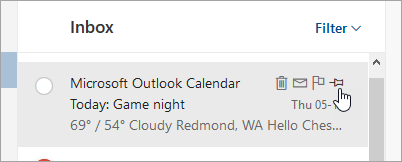
Select
 to keep the message at the top of your inbox.
Select
 to unpin the message.
Was this article helpful?
That’s Great!
Thank you for your feedback
Sorry! We couldn't be helpful
Thank you for your feedback
Feedback sent
We appreciate your effort and will try to fix the article