Add a new account in new Outlook
On the View tab, select View settings.
Select Accounts > Email accounts. You can now add a new account.
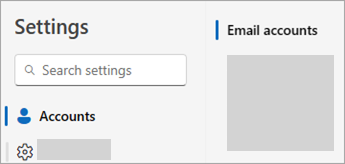
Under Email accounts, select Add Account, and select a suggested account from the dropdown menu or enter a different email address. Click Continue.
Note: Some non-Microsoft email providers, like Gmail, Yahoo, and iCloud, require you to change some settings on their websites before you can add these accounts to Outlook.
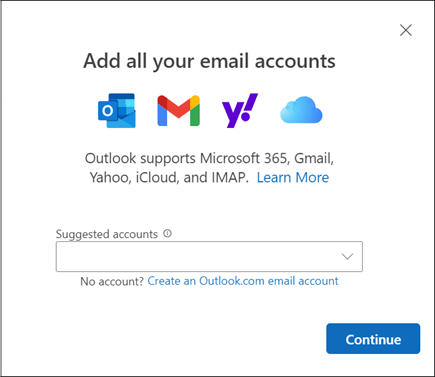
If prompted, enter your password for the account and select Done.
Set as primary account in new Outlook
On the View tab, select View settings > Accounts > Email accounts.
In the Email accounts section, find the account you want to make changes to or delete. Beside the account name, select Manage.
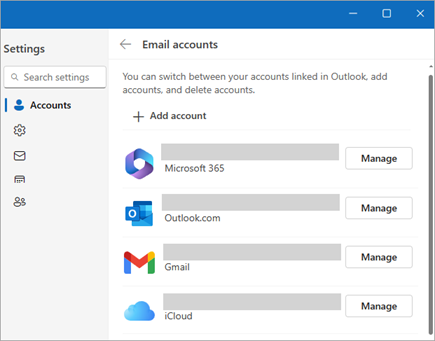
Under Account details, select Set as primary account.
When you're finished, select Return to accounts page, or close the Settings window
Add a new account in Classic Outlook
These steps are the same whether you're adding your first email account or additional email accounts to classic Outlook for Windows.
Select File > Add Account.
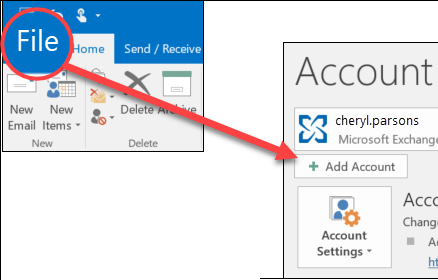
(If you don't see a File tab, perhaps you are using New Outlook for Windows. Go to New Outlook for instructions."
Enter your email address and click Connect.
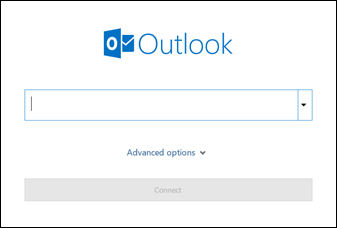
If prompted, enter your password again, then select OK > Finish to start using your email account in classic Outlook for Windows.
Was this article helpful?
That’s Great!
Thank you for your feedback
Sorry! We couldn't be helpful
Thank you for your feedback
Feedback sent
We appreciate your effort and will try to fix the article