Your Guide to Connecting the Zebra DS2278 Scanner via Bluetooth
Follow these quick steps to get your scanner up and running with Roller POS:
Step 1: Prep the Scanner
Turn on Bluetooth on your computer.
Make sure the scanner is fully charged and powered on.
Step 2: Scan the Setup Barcode
Grab your scanner and scan the barcode provided.
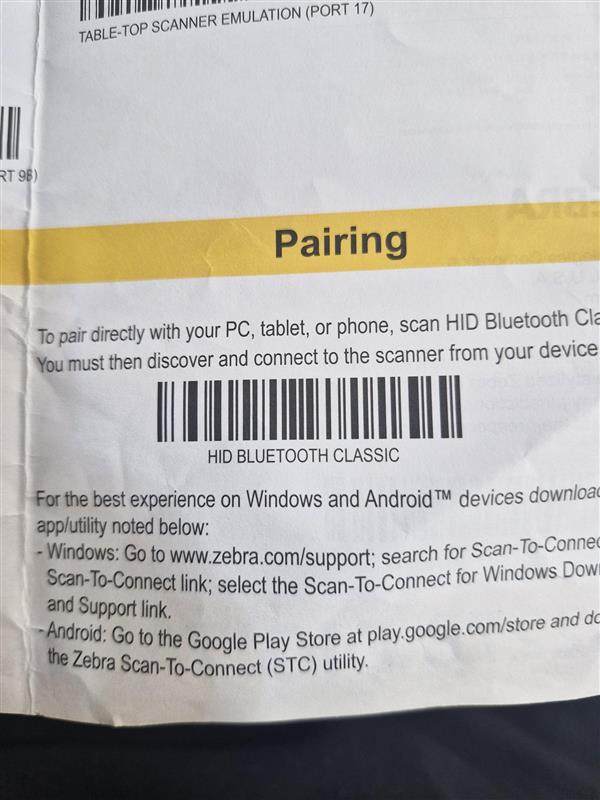
Step 3: Connect via Bluetooth
Click on the Bluetooth icon in the bottom right corner of your screen.
If you don't see it, click the upwards arrow (chevron) to reveal more icons.
Look for a device name like "DS2278..." – it may appear as a keyboard device.
Click to connect.
Step 4: Having Trouble?
If the scanner won’t connect, scan the troubleshooting barcode provided.
Then, restart the guide from Step 1.
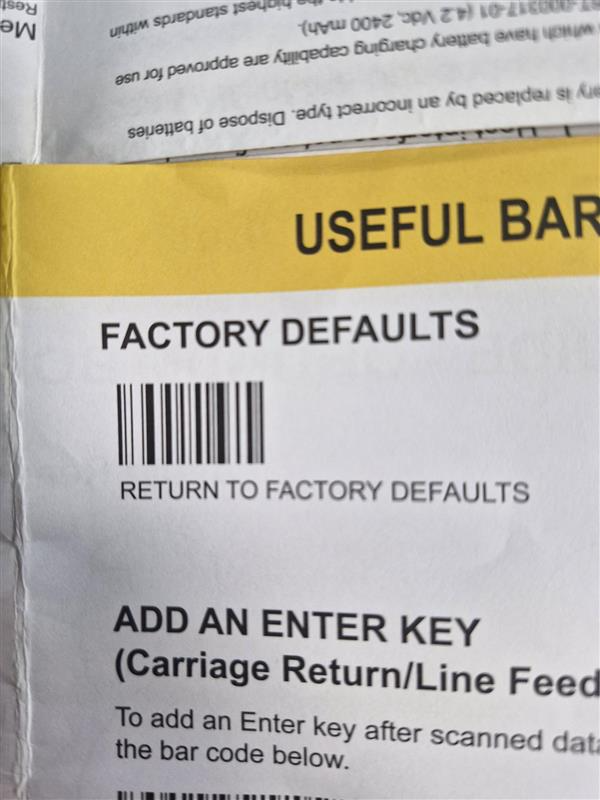
Step 5: Test It in Roller POS
Open Roller POS.
Scan any item.
If it beeps and appears on screen—you’re good to go!
Your Guide to Connecting the Datalogic Scanner via Bluetooth
Step 1: Prep the Scanner
Turn on Bluetooth on your computer.
Make sure the scanner is fully charged and powered on.
Step 2: Scan the factory default barcode
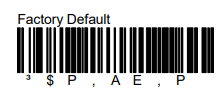
Wait 30 seconds
Step 3: Scan the unlink barcode
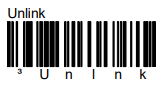
Step 3: Scan the link barcode

- The scanner will now be visible for 5 minutes
Step 4: Connect via Bluetooth
Click on the Bluetooth icon in the bottom right corner of your screen.
If you don't see it, click the upwards arrow (chevron) to reveal more icons.
Look for a device name like "datalogic" – it may appear as a keyboard device.
Click to connect.
If it asks for a pin it will be 1234
If you have a different make/model refer to the manufacturers guide. If you need support with this please reach out via the portal.
Was this article helpful?
That’s Great!
Thank you for your feedback
Sorry! We couldn't be helpful
Thank you for your feedback
Feedback sent
We appreciate your effort and will try to fix the article